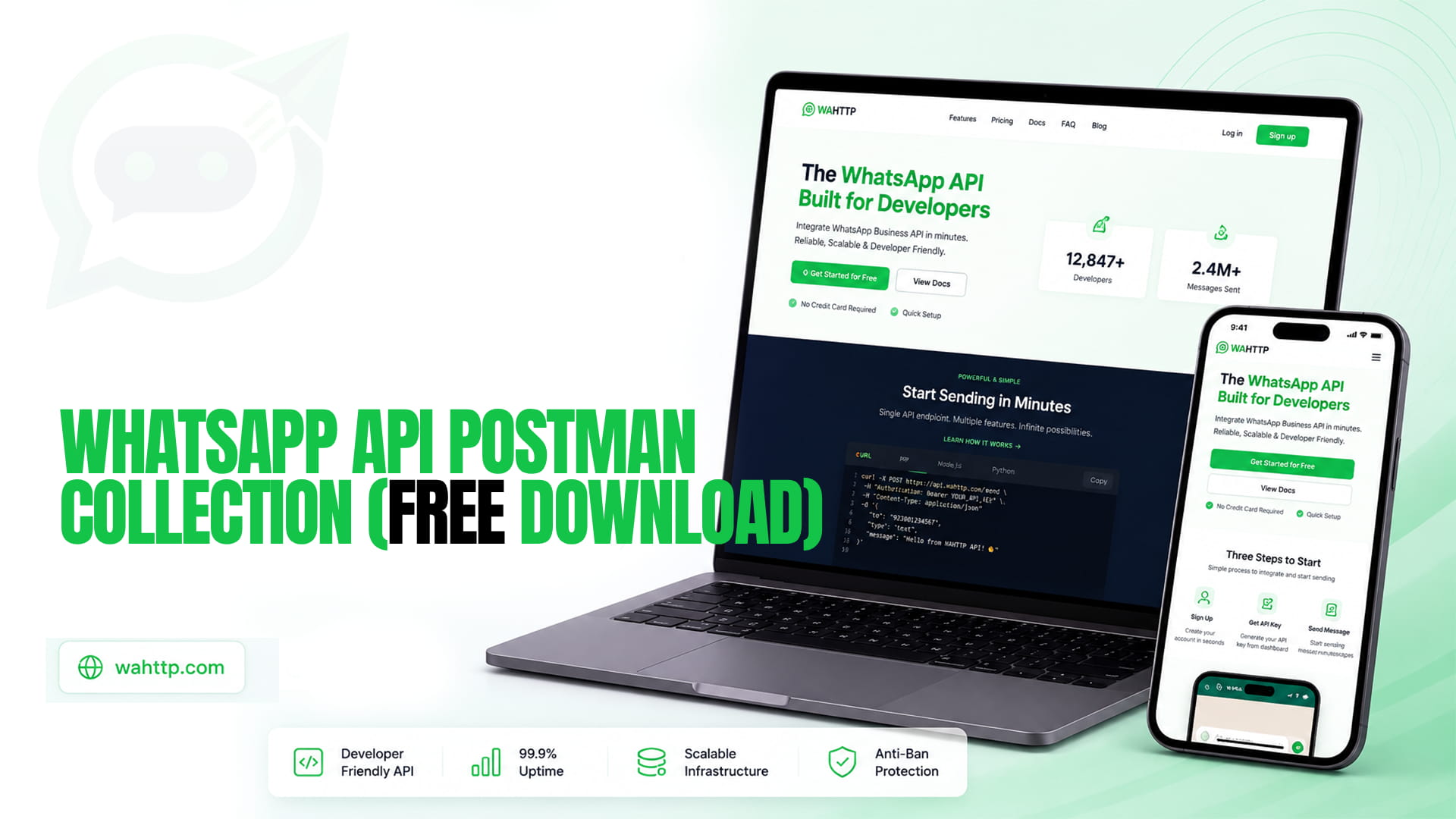
If you want to test the WhatsApp API without writing a line of code first, Postman is the fastest way in. You import a collection, fill in two values, hit Send, and you know within a minute whether your session and key actually work — before you build anything around them.
This post gives you that collection, free, with three pre-built requests and nothing to install beyond Postman itself. It uses the same endpoint as every other tutorial on this site, so anything you learn here transfers directly to code later.
The whole thing, first
Wahttp is the WhatsApp API Built for Developers. Send and receive WhatsApp messages with a simple, powerful HTTP API. No complex SDKs. No vendor lock-in. Just clean REST endpoints.
| What you get | Detail |
| Requests included | Send text, send image, send document — 3 requests, one endpoint |
| Endpoint | POST https://app.wahttp.com/api/sessions/{id}/messages |
| Auth | Bearer API key, stored as a collection variable |
| Setup time | Under 5 minutes, including creating a session |
| Code required | None to send your first message |
| Cost to test | Free trial: 100 messages a day for 7 days, no card required |
Download the collection file (wahttp-postman-collection.json), import it into Postman, set the variables below, and send the text request. That is the whole workflow. The rest of this post is the setup, the three requests explained, and the mistakes that make a first send fail.
Step 1: Import the collection
- Download the collection file from this page.
- Open Postman and click Import (top left).
- Drag the
.jsonfile in, or choose it from your computer. - You will see a collection called WaHttp WhatsApp API with three requests inside it.
No Postman account is needed to import and use a local collection, and the collection contains no code, no pre-request scripts that call anything else, and no tracking. It makes exactly the requests you send, to app.wahttp.com, and nothing else.
Step 2: Set the four variables that matter
Click the collection name, open the Variables tab, and fill these in. The collection ships with placeholders — it will not send anything useful until you replace them.
| Variable | What to put in it | Where to find it |
base_url | https://app.wahttp.com/api (already set) | — |
session_id | Your WaHttp session ID | Your WaHttp dashboard, after you create a session and scan the QR code |
api_key | Your WaHttp API key | Your WaHttp dashboard |
to | The recipient's number in E.164 format, e.g. +14155551234 | Your own test number — send the first message to yourself |
Two more variables, image_url and document_url, are only used by the media requests. Leave them until you need them.
Keep the key out of screenshots and shared workspaces. The API key in a collection variable is a secret. If you share the collection, export it with the variable values cleared, or share the file from this page instead of your filled-in copy. Anyone with your key and session ID can send messages as you.
Step 3: Send your first message
Open Send a text message, check the body, and hit Send:
A working send returns a 2xx response with a JSON body containing a message ID. The collection has a built-in test that checks for exactly that: a 2xx status. If Postman shows the test passing and your phone buzzes, the API, the session, and the key all work — and any problem in your later code is in your code, not in the setup.
If the response is not 2xx, read the status code before changing anything else:
- 401 — the API key is wrong, or belongs to a different account. Re-copy it from the dashboard; do not retry with the same key and expect a different result.
- 400 — the payload is malformed. Check that
tois in E.164 format (+followed by country code and number, no spaces or brackets) and thattypeis exactlytext. - 404 — the session ID is wrong, or the session does not exist. Check the ID in the dashboard.
- 429 — you are sending too fast. Wait, then retry once with a delay. Do not hammer the endpoint; pacing matters, and our bulk messaging guide covers the backoff pattern in full.
That last point is worth repeating: never retry a 400 or 401. A malformed payload or a bad key fails identically every time you resend it. Fix the value, then send once.
The three requests, explained
1. Send a text message
The basic send, and the one to test first. One endpoint, one Bearer key, one JSON body:
Everything in this collection is a variation on this request. If you understand this one, you understand the API. The full code version of the same send — the same endpoint, the same payload, written as a fetch call — is in our Send WhatsApp Messages from JavaScript guide, which also covers the browser CORS problem and the serverless proxy fix for when you move this into a web page.
2. Send an image message
Media uses the same endpoint with a different type. WaHttp fetches the file from your URL, so host it somewhere publicly reachable first:
Two things catch people out here. First, the URL must be reachable from WaHttp's servers, not just from your laptop — a localhost link or a file behind a login page will fail. Second, give media a longer timeout than text: 30 seconds is a good default in Postman's settings, because the API downloads your file before delivering it.
3. Send a document message
The same shape again, with type set to document:
Use this when the file must arrive untouched — an invoice, a contract, a PDF — rather than re-encoded as media. It is the same distinction as sending a video as a document instead of as media: the recipient gets a file to download, exactly as you sent it.
What Postman is for — and what it is not for
Postman is a testing and exploration tool. It is the right place to prove a session works, to check what an error response actually says, to try a payload before you commit it to code, and to show a teammate a working request without handing them your codebase.
It is not a production sender. Do not run bulk sends from Postman: there is no pacing, no retry logic, no resume log if a send fails halfway, and firing a loop at full speed is one of the clearest automation signals WhatsApp's detection looks for. For anything beyond a handful of test messages, move the same endpoint into code with pacing and backoff — our Node.js tutorial builds that out, including a webhook receiver so you can reply to incoming messages too, and the Python tutorial mirrors it line for line.
Postman also cannot receive messages. Sending is one direction; to receive replies, register a webhook URL in your WaHttp dashboard and WaHttp will POST every inbound message to it as JSON. Our webhooks deep dive covers signature verification and the acknowledge-first pattern that stops duplicate deliveries.
Three mistakes that break a first send
Sending to a badly formatted number. Real input arrives as (415) 555-1234 or 415-555-1234. Normalize to E.164 (+14155551234) before sending, not after a message silently fails to land. This is the single most common cause of a first-send failure, in Postman and in code alike.
Using the wrong session. A session ID from a deleted session, or from a different WaHttp account, returns a 404 that looks like an endpoint problem. It is not — the endpoint is fine, the session is not there. Create a fresh session, scan the QR code, and copy the new ID.
Skipping the response body. A 2xx status tells you the API accepted the message. Read the JSON body anyway: it carries the message ID you will need if you ever have to trace a delivery. And if the status is not 2xx, the body usually tells you exactly what was wrong — read it before you change the request.
One more caution, because it is the expensive one: test with your own number first, and keep test volume low. A brand-new session that immediately fires off messages to dozens of strangers looks like spam, and a banned number is far harder to recover than a slow start is to endure. Our number-ban guide covers warm-up, opt-in, and what to do if a number does get flagged.
What this costs once you are past the trial
Everything above runs on a free trial — 100 messages a day for seven days, no card required. Past that, WaHttp pricing runs $5 to $35 a month for one to ten sessions, with unlimited messages on every tier and no per-message fee layered on top the way Meta's official Cloud API charges. Postman itself is free for this use; the collection adds no cost.
The bottom line
Download the collection, set two variables, send one text message to yourself. If it lands, your session, your key, and the endpoint all work — and you have a working reference request to compare your code against whenever a later send fails. That five-minute check saves the most common debugging loop in WhatsApp API work: wondering whether the problem is your code or your setup, when a single Postman send would have answered it.